
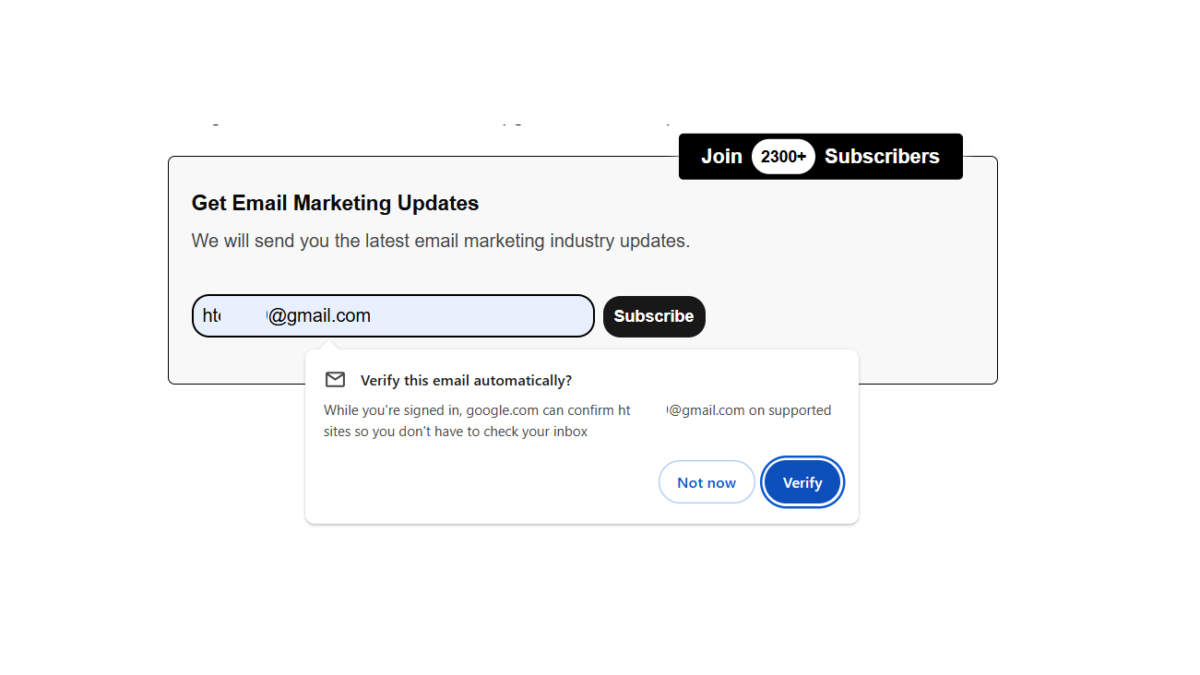
I tested Google’s new Email Verification Protocol (EVP) to see what value it adds to our sign-up process. Instead of users submitting their email address, opening their inbox, and clicking a verification link, EVP lets Chrome verify their email without leaving the page. We have implemented it on our newsletter signup page, so you can try it yourself and see how it works.
On the set, note that EVP is not particularly built for spam prevention. You still need to implement your existing anti-spam checks and validation. It is designed to simplify the email verification process. If verification fails, your signup should fall back to the normal confirmation email.
EVP Trial Registration
Before your domain can request or receive EVP tokens, you must register for Chrome’s origin trial and add the token in your form’s signup page header.
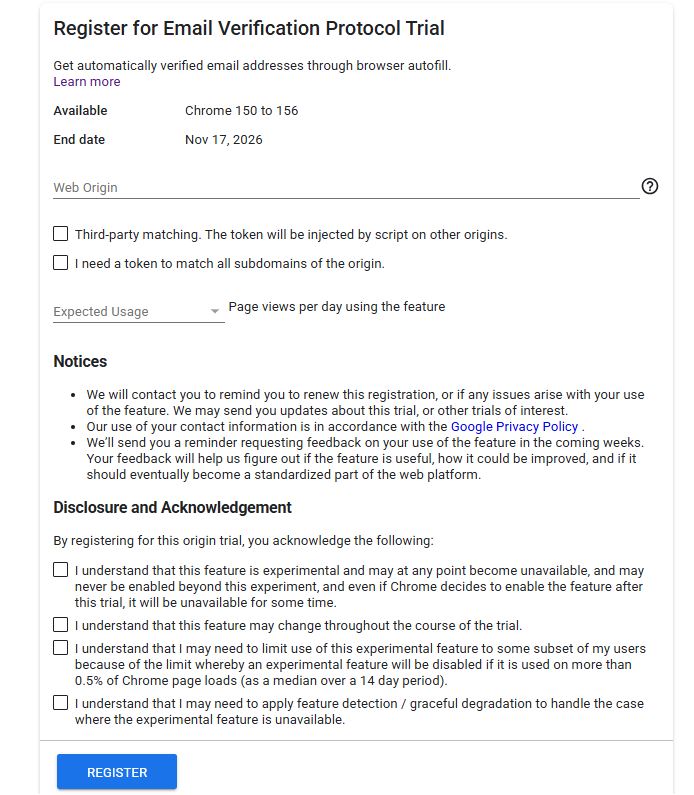
- To register, go to Trial for Email Verification Protocol and click Register.
- Web origin is the website where the signup is processed
- Select whether the trial applies to third party or your domain
Expected error: If your subscription form is served directly from your own domain, which is the case for most newsletter and account-signup forms, you should select the second option only. When I selected both options and added the token in our header, the form was submitting with an empty token every time (missing token error), and our server-side logic was always falling back to the standard confirmation-email flow without any indication of the exact problem.
- Select views, agree to the terms, and register
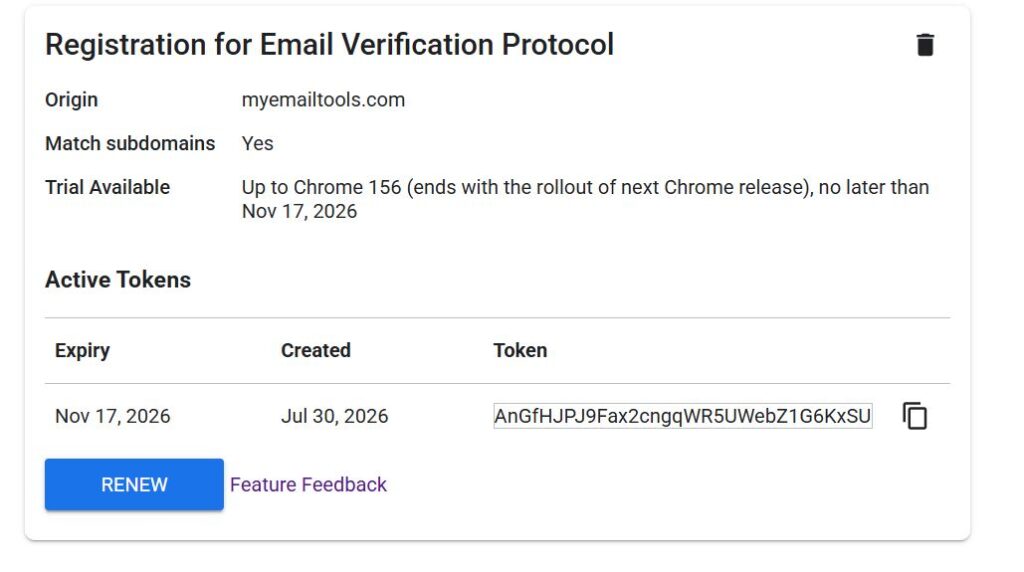
- An origin trial token will automatically be generated for you as shown in the image below
EVP Form markup
The origin trial token needs to be placed in the page head in your HTML:
For example:
<meta http-equiv=”origin-trial” content=”YOUR_TOKEN_HERE”>
Then the signup form itself requires a hidden input that the browser will populate:
<input type=”hidden” name=”token” nonce=”SERVER_GENERATED_NONCE” autocomplete=”email-verification-token”>
The autocomplete=”email-verification-token” value is what signals to the browser that this field is requesting an EVP token; omit it, and the field behaves as an ordinary hidden input that the browser will never fill. The nonce attribute must be generated server-side, unique per page load, and stored (typically in a short-lived, HttpOnly, Secure cookie) so it can be compared against the value embedded in the token later.
Treat the nonce cookie and the autocomplete attribute as a dependent pair. The attribute tells the browser what to populate; the cookie is what allows your server to confirm the resulting token was not replayed from an earlier session.
Client-side token capture
Token population is asynchronous and does not necessarily complete by the time a submit handler fires. Reading form data immediately on submission risks capturing the field before the browser has written to it.
javascript
setTimeout(() => {
const data = new FormData(form);
// proceed with submission
}, 50);
A fifty-millisecond delay was sufficient in our testing; the appropriate value depends on your form’s specific submit-handling logic and should be verified independently.
Verify the token on your server
The EVP token contains two JSON Web Tokens (JWTs): an Email Verification Token (EVT) and a Key-Binding JWT (KB-JWT). Your server should verify both before accepting the signup.
The most important checks are:
- Match the verified email address with the submitted email.
- Validate the nonce against your cookie.
- Confirm the audience (aud) matches your domain.
- Verify the DNS TXT record at _email-verification..
- Download the issuer’s metadata and public signing keys.
- Verify both JWT signatures.
- Validate the key binding.
If any step fails, continue with your normal confirmation email instead of rejecting the signup.
EVP implementation problems I encountered
Most failures came from configuration rather than the protocol itself.
- Missing autocomplete attribute: Chrome never populated the token.
- Nonce mismatch: Usually caused by cookie expiry.
- Missing DNS TXT record: Verification silently failed and always fell back to email confirmation.
- Blocked outbound HTTPS requests: Some hosting providers prevented downloading the issuer’s metadata and signing keys.
- EdDSA support: Older JWT libraries didn’t support Ed25519 keys and reported unsupported key type errors.
- Key format mismatch: My JWT library expected a different key format, producing cryptographic key-length errors even though the public key itself was valid.
The EdDSA issue consumed the most debugging time. The issuer’s keys may use the Ed25519 algorithm, represented in JSON Web Key (JWK) format with key type OKP. Many JWT libraries added EdDSA support after their initial release, and older or partially updated key-handling code may only recognize RSA and EC key types, producing an “unsupported key type” error for every key in the set.
Once EdDSA support is confirmed, a second, less obvious failure mode remains: some libraries expect the raw public key bytes; others base64-decode the key material internally and therefore expect a base64-encoded string as input. Supplying the wrong format produces a key-length error at the cryptographic layer (for example, a SODIUM_CRYPTO_SIGN_PUBLICKEYBYTES length mismatch) that reads as a malformed key, even when the underlying key data is correct.
Check your JWT library’s source for its EdDSA handling before assuming the key material itself is at fault. A byte-length error at this stage is more often a format mismatch than a corrupted key.
What doesn’t work – yet
Right now, EVP only works if both Chrome and the visitor’s email provider support the protocol, so you still need the traditional confirmation email as a fallback.
It is also important to emphasize that EVP only works with the email address linked to your Chrome profile, which is not necessarily the same Gmail accounts you are signed in to. If you use autofill to select a different Gmail address, Chrome may still display the Verify your email automatically prompt. However, when you continue, EVP will fail with an email mismatch error and fall back to your normal email verification flow.
A detailed implementation guide is available on this Chrome for Developers blog post.