Gmail Keap Integration
To integrate Gmail with Keap Ultimate, Max Classic, and Pro, follow these steps.
Using Keap Email Sync
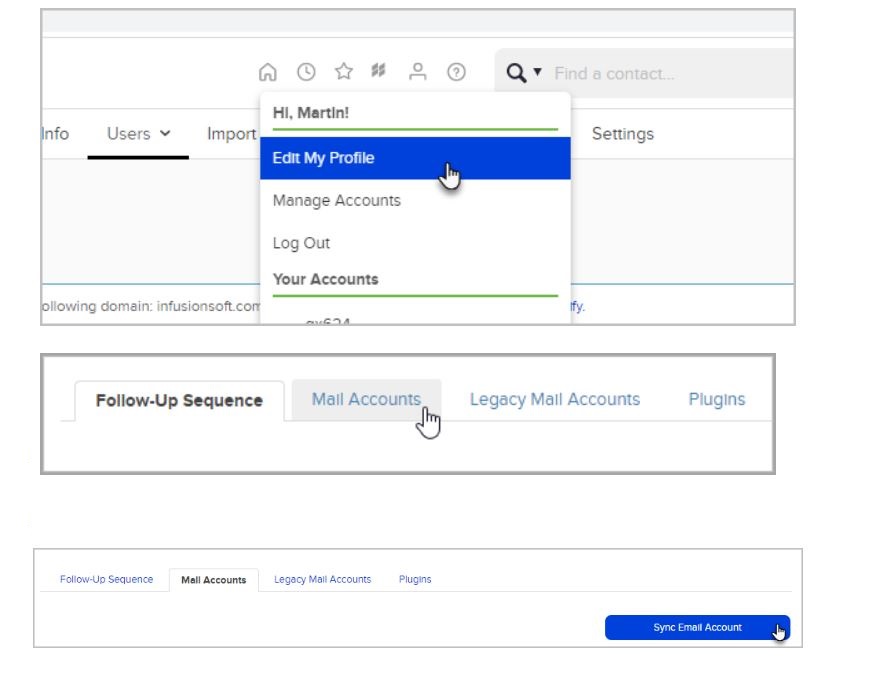
- Go to the profile icon, click edit my profile, and then select Mail Accounts
- Click Sync Email Account
- In the Connect email account card, click Google Gmail
- Select the Gmail account you want to sync and click Allow to grant access.
- If the connection fails, ensure you are signing in with the correct Google account and that two-factor authentication is not blocking the request.
Using Zapier for Advanced Automation
- Visit Zapier and create a new workflow that connects Keap as the trigger and Gmail as the action.
- Authorize both your Keap and Gmail accounts within Zapier to enable data exchange.
- Configure the trigger (e.g., "New Contact in Keap") and the action (e.g., "Send Email in Gmail") to match your needs.
- Test the workflow by sending a real message or creating a contact to confirm data syncs correctly.
Gmail Integration Benefits
Connecting Gmail with Keap allows you to sync emails you send directly into your Keap email history, ensuring all communication with contacts is automatically logged on their record for better tracking and follow-up.
Updated on: Suggest Correction